
Here are the steps to take to integrate your Regulatory Reporting API once your Sandbox Application has been approved.
STEP 1: Find the Client ID, Client Secret, & API Specification Document
On the left menu panel, navigate to the Beyond Sandbox icon, and click on Products.
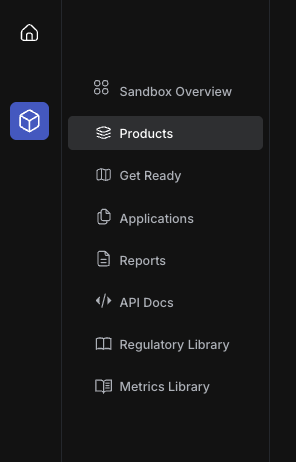
- On the Products menu, select and click on Sandbox Products to view your Product approved for the sandbox.
- Click on your product card and navigate to the Service Details section
- You will be prompted to subscribe to a plan to view the API Client ID & Client Secret.
- Click on subscribe to select and subscribe to the Starter plan in the Billing section.
- Once you’re subscribed to a plan, navigate back to the Service Details section of your product card to view the Client ID and Client Secret.
- On the Service Details page under Subscribed APIs widget, click on the API you’ve been automatically subscribed to view the API Documentation for the product service type.
STEP 2: Create an Access Token
- Copy the client ID and Secret from Service Details in the Sandbox Product Profile
- Make the Authentication HTTP call as shown below
Request:
URL: https://api.emtech.com/integration/v1/auth/token
Method: POST
JSON Payload:
{
"clientId": "{App client Id}",
"clientSecret": "{App client secret}"
}
- You will receive an access token as a response.
Response:
{
"accessToken": "{Access token}",
"expiryMS": {Time in milliseconds}
}
STEP 3: Report a Test Transaction/Event
- Call the REST APIs as shown in the APIs documentation
- Make sure to add the token received after authentication in the auth header.
|
URL: https://api.emtech.com/integration/compliance/v2/remittances Method: POST JSON Payload: (values are shown for example purpose, you should provide the real values) [
] Authentication (Header): Bearer write_your_token_here |
To pass access token in each API, add the bearer token in x-sandbox-app-auth header. E.g. Bearer {Access token}
STEP 4: Data Dictionary Mapping
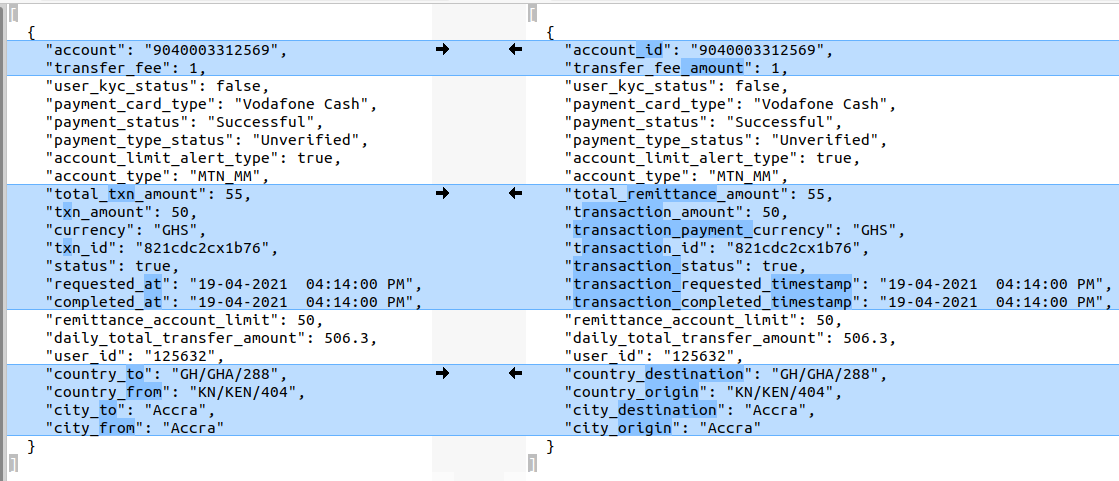
You need to convert your payment data into the payload format which is shown above. You can write a small function (computer program) to do this.
Let’s assume your payment data looks like as shown on the left in the figure below, after the conversion, it should look like as shown on the right (i.e. sandbox-compliance data format):
STEP 5: Reporting Automation
The Regulatory Sandbox requires for a real time or near real time automatic reporting of transactions once you’re approved for market operations. This means that the APIs should be integrated and an API call should be made automatically at each transactional event.
Yes, you can automate the API calls. Below is an example of how you can achieve this.
- Write a simple script that makes a call to the Regulatory Reporting API anytime a transactional event occurs.
- Feel free to use any of your favorite programmatic ways to post the payment details to Sandbox Platform.
Once you’ve successfully integrated the reporting API, you can view all your transactional reporting via the APIs on your Product Dashboard. Regularly monitor the product dashboard and your automated reporting process for any issues or errors. Adjust as needed, such as updating authentication credentials & handling changes to the API.
If you have any further questions or require additional information kindly reach out to us on support@emtech.com.
We hope this is useful. Happy integrating!!